> ## Documentation Index
> Fetch the complete documentation index at: https://docs.perplexity.ai/llms.txt
> Use this file to discover all available pages before exploring further.
# Perplexity Computer MCP Server
> Give AI assistants the ability to complete real-world tasks using Perplexity Computer through the Model Context Protocol (MCP).
## Overview
The Perplexity Computer MCP Server connects AI assistants to [Perplexity Computer](https://www.perplexity.ai), a general-purpose AI agent that can complete virtually any task on your behalf. Through the Model Context Protocol, your MCP client can delegate complex, multi-step work to Computer and receive structured results.
This integration is separate from the [Perplexity API MCP Server](/docs/getting-started/integrations/mcp-server), which is focused on Perplexity's Search and Completion APIs.
Computer can:
* **Search and browse** the web for real-time information, including login-gated pages
* **Write and execute code** in an interactive Linux sandbox with Python, Node, and standard Unix tools
* **Create documents and media** including PDFs, slide decks, spreadsheets, images, and videos
* **Read and send emails** via Gmail and Outlook, and schedule calendar events
* **Manage tasks** across GitHub, Linear, Jira, Asana, Slack, Notion, and more
* **Analyze data** from Snowflake, Databricks, Google Sheets, Salesforce, and other sources
* **Build and deploy websites** to a live public URL in minutes
* **Connect to 400+ services** through a managed connector framework with one-click OAuth
## Authentication
The Computer MCP Server authenticates users via **OAuth 2.0** using your Perplexity account. No API key is required.
On first use, compatible MCP clients open a browser window to complete the authorization flow automatically.
Computer usage is billed against your Perplexity account credits. If your balance is insufficient, Computer returns `insufficient_credits` with a link to manage billing.
## Installation
Add the Computer MCP server to your client.
```bash theme={null}
claude mcp add perplexity-computer --transport http https://www.perplexity.ai/rest/computer/mcp
```
```bash theme={null}
codex mcp add perplexity-computer --url https://www.perplexity.ai/rest/computer/mcp
```
Add to your `mcp.json`:
```json theme={null}
{
"mcpServers": {
"perplexity-computer": {
"url": "https://www.perplexity.ai/rest/computer/mcp"
}
}
}
```
Add to your `.vscode/mcp.json`:
```json theme={null}
{
"servers": {
"perplexity-computer": {
"type": "http",
"url": "https://www.perplexity.ai/rest/computer/mcp"
}
}
}
```
Add to your `~/.codeium/windsurf/mcp_config.json`:
```json theme={null}
{
"mcpServers": {
"perplexity-computer": {
"serverUrl": "https://www.perplexity.ai/rest/computer/mcp"
}
}
}
```
Add to your `claude_desktop_config.json`:
```json theme={null}
{
"mcpServers": {
"perplexity-computer": {
"url": "https://www.perplexity.ai/rest/computer/mcp"
}
}
}
```
Any MCP client that supports the HTTP transport can connect using the server URL:
```
https://www.perplexity.ai/rest/computer/mcp
```
Refer to your client's documentation for the correct configuration format.
After installation, you will be asked to authenticate with your Perplexity account, and will be directed to a browser window to complete the OAuth flow.
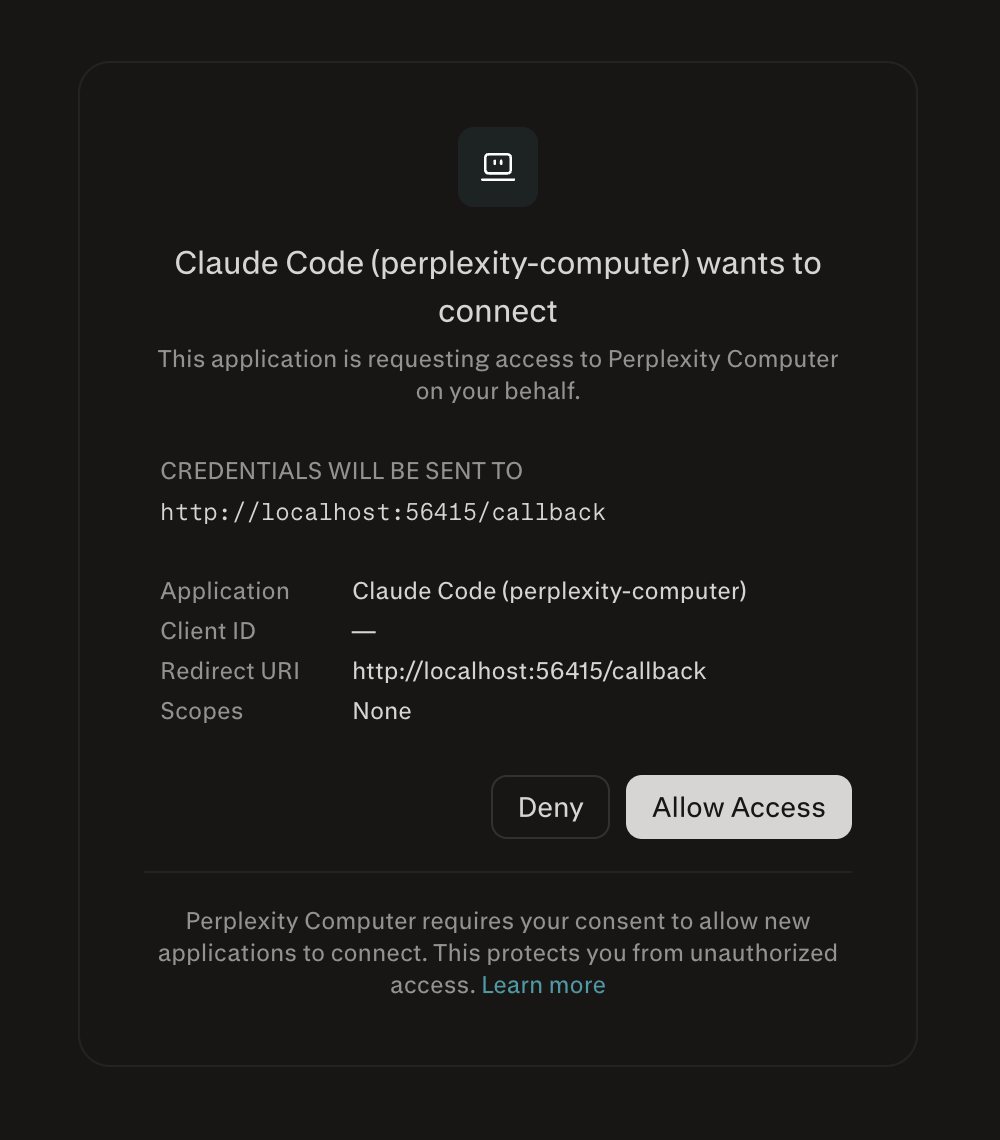 Once authenticated, you're ready to start delegating tasks to Perplexity Computer through your MCP client.
Run a short flow to test the connection and see Computer in action:
```text theme={null}
Summarize the top 5 stories on Hacker News right now.
```
Then follow up in the same conversation:
```text theme={null}
Turn that into a PDF report.
```
## Conversation Threading
Computer remembers the context from the first message and builds on it. To keep follow-up prompts in the same workflow, your MCP client must pass the `thread_id` from the previous response.
The first call creates a new thread and returns a `thread_id`. Reuse that `thread_id` on later calls to continue the same session.
```
1. call_perplexity_computer(message: "Summarize the top 5 stories on Hacker News right now")
-> { thread_id: "123e4567-e89b-12d3-a456-426614174000", event: "complete", text: "Here are today's top stories..." }
2. call_perplexity_computer(message: "Turn that into a PDF report", thread_id: "123e4567-e89b-12d3-a456-426614174000")
-> { thread_id: "123e4567-e89b-12d3-a456-426614174000", event: "complete", text: "Here's the report.\n\n[report.pdf](https://...)" }
```
This also applies to interactive events. If Computer needs to connect to a service mid-task, it returns an `auth_required` event, and after authentication the conversation resumes on the same thread:
```
1. call_perplexity_computer(message: "Email me a summary of my unread Slack messages")
-> { thread_id: "123e4567-e89b-12d3-a456-426614174001", event: "auth_required", interactive: { type: "auth_required", connector: "slack", auth_url: "https://..." } }
2. notify_connected(thread_id: "123e4567-e89b-12d3-a456-426614174001", message: "Slack connected")
-> { thread_id: "123e4567-e89b-12d3-a456-426614174001", event: "complete", text: "Done! Sent the summary to your email." }
```
## Status and Progress Updates
Computer tasks can take several minutes when they involve browsing, connector authentication, code execution, or file generation. The MCP tool call remains open until Computer reaches a final state or an actionable checkpoint.
Use the `event` field in each response as the current status for the task. The same response also includes the `thread_id` you need for follow-up calls:
```
{
"thread_id": "123e4567-e89b-12d3-a456-426614174000",
"event": "complete",
"text": "Finished the report."
}
```
When Computer needs input before it can continue, the response includes an actionable event and an `interactive` object:
```
{
"thread_id": "123e4567-e89b-12d3-a456-426614174000",
"event": "ask_user_question",
"text": "Which format should I use?\n1. PDF\n2. DOCX",
"interactive": {
"type": "ask_user_question",
"thread_id": "123e4567-e89b-12d3-a456-426614174000",
"respond_with_tool": "answer_question"
}
}
```
Handle these checkpoints by calling the indicated follow-up tool with the same `thread_id`:
| Event | Follow-up |
| -------------------- | ------------------------------------------------------------------------------------ |
| `ask_user_question` | Call `answer_question` with the user's answer. |
| `confirm_action` | Call `confirm_action_approve` or `confirm_action_deny`. |
| `auth_required` | Open the OAuth URL, then call `notify_connected`. |
| `sleep` or `waiting` | Call `call_perplexity_computer` with the same `thread_id` when you want to continue. |
The Computer MCP server sends status updates as MCP progress notifications while a task runs. Your client must include a progress token and support progress notifications to display them. These updates are task statuses rather than token-by-token response streaming.
If the tool returns `timeout`, the MCP server did not receive a checkpoint before its wait window expired. The task may still be running. Keep the `thread_id` and call `call_perplexity_computer` again with that same `thread_id` to continue or ask for the latest status.
## File Uploads
Computer can work on files you provide. To attach a file to a task, request a presigned S3 envelope with `create_attachment_upload`, upload the bytes directly to S3, and pass the returned URL in `attachment_urls` on your next tool call. The MCP server never sees the file contents, so uploads scale to large binaries without going through the worker.
The maximum file size is **200 MB** per attachment.
Call `create_attachment_upload` with the file's `filename`, `mime_type`, and `size_bytes`. The server returns a presigned S3 POST you can use for the next few minutes.
```
create_attachment_upload(
filename: "report.pdf",
mime_type: "application/pdf",
size_bytes: 482190,
)
-> {
attachment_url: "https://bucket.s3.amazonaws.com/uploads//report.pdf",
upload_url: "https://bucket.s3.amazonaws.com",
upload_fields: { "key": "uploads//report.pdf", "policy": "...", ... },
}
```
Send an unauthenticated `multipart/form-data` POST to `upload_url`. Include every key from `upload_fields` as a form field, then add the file under a `file` part.
```bash theme={null}
curl -X POST "$UPLOAD_URL" \
-F "key=$KEY" \
-F "policy=$POLICY" \
-F "x-amz-signature=$SIGNATURE" \
-F "file=@./report.pdf"
```
S3 returns `204 No Content` on success. The file is now reachable at `attachment_url`.
Pass the `attachment_url` to any task tool via the `attachment_urls` array. You can attach files to a new task or to a follow-up on an existing thread.
```
call_perplexity_computer(
message: "Summarize this report and pull out the key risks.",
attachment_urls: ["https://bucket.s3.amazonaws.com/uploads//report.pdf"],
)
```
### `create_attachment_upload`
Request a presigned S3 POST for a single file. Returns an envelope your client uses to upload bytes directly to S3.
| Parameter | Type | Required | Description |
| ------------ | ------- | -------- | --------------------------------------------------------------- |
| `filename` | string | Yes | File name including extension (e.g. `report.pdf`). |
| `mime_type` | string | Yes | Content type of the file (e.g. `application/pdf`, `image/png`). |
| `size_bytes` | integer | Yes | File size in bytes. Must not exceed 200 MB. |
Returns:
| Field | Type | Description |
| ---------------- | ------ | ----------------------------------------------------------------------- |
| `attachment_url` | string | Pass this back in `attachment_urls` on a follow-up tool call. |
| `upload_url` | string | The S3 endpoint to POST the file to. |
| `upload_fields` | object | Form fields to include alongside the `file` part in the multipart POST. |
## Capabilities
### Browser Control
Computer includes a full cloud browser for tasks that go beyond search. When a task requires interacting with a website, filling forms, or accessing login-gated content, Computer launches a browser session automatically.
| Capability | Description |
| -------------------- | ----------------------------------------------------------------------------------------------------- |
| Navigation | Navigate to any URL, click elements, fill forms, and extract structured data. |
| Authentication | Handle multi-step login flows and authenticated sessions. |
| Screenshots | Take high-fidelity screenshots of any webpage. |
| Batch processing | Run browser tasks across dozens of URLs in parallel, collecting results into structured output. |
| JavaScript rendering | Access content on dynamic, JavaScript-heavy pages that aren't available through simple HTTP requests. |
### Code Execution
Computer runs code in a sandboxed Linux VM with a persistent file workspace. Python, Node.js, ffmpeg, and standard Unix tools are pre-installed, and additional packages can be installed on the fly.
| Capability | Description |
| --------------------- | ----------------------------------------------------------------------------------- |
| Interactive execution | Write and execute Python or Node scripts in real time, iterating on results. |
| Data processing | Process CSV, JSON, Excel, PDF, images, audio, and video files. |
| Shell commands | Run shell commands for system operations, data processing, and automation. |
| Visualizations | Generate charts, plots, and data analysis outputs. |
| File workspace | Persistent directory where files are created, read, and managed across the session. |
### Connected Services
Computer connects to **400+ external services** through a managed connector framework. Users authenticate once via OAuth, and Computer uses tokens securely to read data, take actions, and search across services.
| Category | Services |
| ------------------ | ---------------------------------------------------------------------- |
| Communication | Slack, Gmail, Outlook, Microsoft Teams |
| Calendar | Google Calendar, Outlook Calendar |
| Documents | Notion, Google Docs, Google Sheets, Dropbox, OneDrive, SharePoint, Box |
| Project Management | Linear, Jira, Asana, Confluence, Trello |
| CRM & Sales | HubSpot, Salesforce |
| Development | GitHub, GitLab, Vercel, Supabase |
| Data & Analytics | Snowflake, Databricks, Airtable, Google Sheets |
| Finance | Stripe, Ramp, Plaid |
| Research | CB Insights, PitchBook, Statista, SEC EDGAR |
| And more | Hundreds of additional connectors across categories |
When a task requires a service that isn't connected yet, Computer provides an OAuth link. Authenticate in your browser and the connector becomes available immediately.
## Available Tools
}
>
Send a message to Perplexity Computer to start or continue any task. This is the primary tool you'll use for all interactions.
**Best for:** Starting new tasks, sending follow-up instructions, and resuming paused conversations.
Relays answers when Computer asks for more information. Clients that support MCP elicitation can handle this within the active call.
**Triggered by:** `ask_user_question` events.
Approves or denies a sensitive action like sending an email or deploying code. Clients that support MCP elicitation can handle this within the active call.
**Triggered by:** `confirm_action` events.
Resumes a task after you complete an OAuth flow for a third-party service.
**Triggered by:** `auth_required` events.
Creates a presigned S3 upload envelope for a file you want Computer to use.
**Best for:** Attaching files without sending their bytes through the MCP server.
### `call_perplexity_computer`
The primary tool. Send a message to start a new task or continue an existing conversation.
| Parameter | Type | Required | Description |
| ----------------- | --------- | -------- | ------------------------------------------------------------------------ |
| `message` | string | No | The task description or follow-up message. |
| `thread_id` | string | No | Thread ID to continue an existing conversation. Omit to start a new one. |
| `attachment_urls` | string\[] | No | URLs from `create_attachment_upload` for files to attach to this turn. |
Clients that support MCP elicitation can handle `ask_user_question` and `confirm_action` within the active tool call. Otherwise, use the following tools to resume the task after an interactive event.
### `answer_question`
Relays answers when Computer returns an `ask_user_question` event.
| Parameter | Type | Required | Description |
| ----------------- | --------- | -------- | ------------------------------------------------------------------------ |
| `thread_id` | string | Yes | The thread ID from the active conversation. |
| `answers` | object | Yes | Key-value pairs mapping each question to your answer. |
| `attachment_urls` | string\[] | No | URLs from `create_attachment_upload` for files to attach to this answer. |
### `confirm_action_approve`
Approves a pending action from a `confirm_action` event.
| Parameter | Type | Required | Description |
| ----------------- | --------- | -------- | -------------------------------------------------------------------------- |
| `thread_id` | string | Yes | The thread ID from the active conversation. |
| `result` | string | Yes | Reason or message for the approval. |
| `attachment_urls` | string\[] | No | URLs from `create_attachment_upload` for files to attach to this approval. |
### `confirm_action_deny`
Denies a pending action from a `confirm_action` event.
| Parameter | Type | Required | Description |
| ----------------- | --------- | -------- | ------------------------------------------------------------------------ |
| `thread_id` | string | Yes | The thread ID from the active conversation. |
| `result` | string | Yes | Reason for denying the action. |
| `attachment_urls` | string\[] | No | URLs from `create_attachment_upload` for files to attach to this denial. |
### `notify_connected`
Resumes a task after you complete an OAuth flow triggered by an `auth_required` event.
| Parameter | Type | Required | Description |
| ----------------- | --------- | -------- | ----------------------------------------------------------------------- |
| `thread_id` | string | Yes | The thread ID from the active conversation. |
| `message` | string | Yes | Message about the completed connection. |
| `attachment_urls` | string\[] | No | URLs from `create_attachment_upload` for files to attach when resuming. |
## Response Format
Task tools return a JSON object with the following fields. `create_attachment_upload` returns the upload envelope described in [File Uploads](#file-uploads) instead.
| Field | Type | Description |
| ------------- | ------ | ------------------------------------------------------------------------------------------------------------------------ |
| `thread_id` | string | The conversation UUID. Pass this back to continue the conversation. Omitted when a request fails before a thread starts. |
| `event` | string | The event type indicating what happened. See [Events](#events). |
| `text` | string | Markdown-formatted response text. |
| `interactive` | object | Present only for interactive events that require a follow-up action. |
## Events
Each response includes an `event` field describing the outcome:
| Event | Description | Action Required |
| ---------------------- | --------------------------------------------------------------------------- | ---------------------------------------------------------------------------------- |
| `complete` | Task finished successfully. | None. |
| `error` | Task failed. | Review the error message. |
| `cancelled` | Task was cancelled before completion. | Start a new task or continue the thread with new instructions. |
| `sleep` | Agent is pausing mid-task. | Call `call_perplexity_computer` with the same `thread_id` to resume. |
| `waiting` | Agent is waiting on an external condition or more time to pass. | Keep the `thread_id` and continue the thread when ready. |
| `ask_user_question` | Agent needs more information. | Call `answer_question` with your answers. |
| `confirm_action` | Agent wants to perform a sensitive action. | Call `confirm_action_approve` or `confirm_action_deny`. |
| `auth_required` | A third-party service needs authentication. | Open the provided `auth_url` in a browser, then call `notify_connected`. |
| `two_factor_required` | A connector or site requires two-factor authentication. | Follow the instructions in `text`, then continue with the same `thread_id`. |
| `insufficient_credits` | Account has insufficient credits. | Top up credits or adjust your spending limit. |
| `access_denied` | Computer is unavailable for the account. | If you belong to an organization, ask its administrator to enable Computer access. |
| `timeout` | The MCP server did not receive a checkpoint before the wait window expired. | Retry with the same `thread_id` to continue or request current status. |
## Links & Resources
}
href="https://www.perplexity.ai"
>
Learn more about Perplexity Computer, the Digital Worker that can complete any task on your behalf.
Power your agents with Perplexity's APIs for real-time information retrieval and generation.
Once authenticated, you're ready to start delegating tasks to Perplexity Computer through your MCP client.
Run a short flow to test the connection and see Computer in action:
```text theme={null}
Summarize the top 5 stories on Hacker News right now.
```
Then follow up in the same conversation:
```text theme={null}
Turn that into a PDF report.
```
## Conversation Threading
Computer remembers the context from the first message and builds on it. To keep follow-up prompts in the same workflow, your MCP client must pass the `thread_id` from the previous response.
The first call creates a new thread and returns a `thread_id`. Reuse that `thread_id` on later calls to continue the same session.
```
1. call_perplexity_computer(message: "Summarize the top 5 stories on Hacker News right now")
-> { thread_id: "123e4567-e89b-12d3-a456-426614174000", event: "complete", text: "Here are today's top stories..." }
2. call_perplexity_computer(message: "Turn that into a PDF report", thread_id: "123e4567-e89b-12d3-a456-426614174000")
-> { thread_id: "123e4567-e89b-12d3-a456-426614174000", event: "complete", text: "Here's the report.\n\n[report.pdf](https://...)" }
```
This also applies to interactive events. If Computer needs to connect to a service mid-task, it returns an `auth_required` event, and after authentication the conversation resumes on the same thread:
```
1. call_perplexity_computer(message: "Email me a summary of my unread Slack messages")
-> { thread_id: "123e4567-e89b-12d3-a456-426614174001", event: "auth_required", interactive: { type: "auth_required", connector: "slack", auth_url: "https://..." } }
2. notify_connected(thread_id: "123e4567-e89b-12d3-a456-426614174001", message: "Slack connected")
-> { thread_id: "123e4567-e89b-12d3-a456-426614174001", event: "complete", text: "Done! Sent the summary to your email." }
```
## Status and Progress Updates
Computer tasks can take several minutes when they involve browsing, connector authentication, code execution, or file generation. The MCP tool call remains open until Computer reaches a final state or an actionable checkpoint.
Use the `event` field in each response as the current status for the task. The same response also includes the `thread_id` you need for follow-up calls:
```
{
"thread_id": "123e4567-e89b-12d3-a456-426614174000",
"event": "complete",
"text": "Finished the report."
}
```
When Computer needs input before it can continue, the response includes an actionable event and an `interactive` object:
```
{
"thread_id": "123e4567-e89b-12d3-a456-426614174000",
"event": "ask_user_question",
"text": "Which format should I use?\n1. PDF\n2. DOCX",
"interactive": {
"type": "ask_user_question",
"thread_id": "123e4567-e89b-12d3-a456-426614174000",
"respond_with_tool": "answer_question"
}
}
```
Handle these checkpoints by calling the indicated follow-up tool with the same `thread_id`:
| Event | Follow-up |
| -------------------- | ------------------------------------------------------------------------------------ |
| `ask_user_question` | Call `answer_question` with the user's answer. |
| `confirm_action` | Call `confirm_action_approve` or `confirm_action_deny`. |
| `auth_required` | Open the OAuth URL, then call `notify_connected`. |
| `sleep` or `waiting` | Call `call_perplexity_computer` with the same `thread_id` when you want to continue. |
The Computer MCP server sends status updates as MCP progress notifications while a task runs. Your client must include a progress token and support progress notifications to display them. These updates are task statuses rather than token-by-token response streaming.
If the tool returns `timeout`, the MCP server did not receive a checkpoint before its wait window expired. The task may still be running. Keep the `thread_id` and call `call_perplexity_computer` again with that same `thread_id` to continue or ask for the latest status.
## File Uploads
Computer can work on files you provide. To attach a file to a task, request a presigned S3 envelope with `create_attachment_upload`, upload the bytes directly to S3, and pass the returned URL in `attachment_urls` on your next tool call. The MCP server never sees the file contents, so uploads scale to large binaries without going through the worker.
The maximum file size is **200 MB** per attachment.
Call `create_attachment_upload` with the file's `filename`, `mime_type`, and `size_bytes`. The server returns a presigned S3 POST you can use for the next few minutes.
```
create_attachment_upload(
filename: "report.pdf",
mime_type: "application/pdf",
size_bytes: 482190,
)
-> {
attachment_url: "https://bucket.s3.amazonaws.com/uploads//report.pdf",
upload_url: "https://bucket.s3.amazonaws.com",
upload_fields: { "key": "uploads//report.pdf", "policy": "...", ... },
}
```
Send an unauthenticated `multipart/form-data` POST to `upload_url`. Include every key from `upload_fields` as a form field, then add the file under a `file` part.
```bash theme={null}
curl -X POST "$UPLOAD_URL" \
-F "key=$KEY" \
-F "policy=$POLICY" \
-F "x-amz-signature=$SIGNATURE" \
-F "file=@./report.pdf"
```
S3 returns `204 No Content` on success. The file is now reachable at `attachment_url`.
Pass the `attachment_url` to any task tool via the `attachment_urls` array. You can attach files to a new task or to a follow-up on an existing thread.
```
call_perplexity_computer(
message: "Summarize this report and pull out the key risks.",
attachment_urls: ["https://bucket.s3.amazonaws.com/uploads//report.pdf"],
)
```
### `create_attachment_upload`
Request a presigned S3 POST for a single file. Returns an envelope your client uses to upload bytes directly to S3.
| Parameter | Type | Required | Description |
| ------------ | ------- | -------- | --------------------------------------------------------------- |
| `filename` | string | Yes | File name including extension (e.g. `report.pdf`). |
| `mime_type` | string | Yes | Content type of the file (e.g. `application/pdf`, `image/png`). |
| `size_bytes` | integer | Yes | File size in bytes. Must not exceed 200 MB. |
Returns:
| Field | Type | Description |
| ---------------- | ------ | ----------------------------------------------------------------------- |
| `attachment_url` | string | Pass this back in `attachment_urls` on a follow-up tool call. |
| `upload_url` | string | The S3 endpoint to POST the file to. |
| `upload_fields` | object | Form fields to include alongside the `file` part in the multipart POST. |
## Capabilities
### Browser Control
Computer includes a full cloud browser for tasks that go beyond search. When a task requires interacting with a website, filling forms, or accessing login-gated content, Computer launches a browser session automatically.
| Capability | Description |
| -------------------- | ----------------------------------------------------------------------------------------------------- |
| Navigation | Navigate to any URL, click elements, fill forms, and extract structured data. |
| Authentication | Handle multi-step login flows and authenticated sessions. |
| Screenshots | Take high-fidelity screenshots of any webpage. |
| Batch processing | Run browser tasks across dozens of URLs in parallel, collecting results into structured output. |
| JavaScript rendering | Access content on dynamic, JavaScript-heavy pages that aren't available through simple HTTP requests. |
### Code Execution
Computer runs code in a sandboxed Linux VM with a persistent file workspace. Python, Node.js, ffmpeg, and standard Unix tools are pre-installed, and additional packages can be installed on the fly.
| Capability | Description |
| --------------------- | ----------------------------------------------------------------------------------- |
| Interactive execution | Write and execute Python or Node scripts in real time, iterating on results. |
| Data processing | Process CSV, JSON, Excel, PDF, images, audio, and video files. |
| Shell commands | Run shell commands for system operations, data processing, and automation. |
| Visualizations | Generate charts, plots, and data analysis outputs. |
| File workspace | Persistent directory where files are created, read, and managed across the session. |
### Connected Services
Computer connects to **400+ external services** through a managed connector framework. Users authenticate once via OAuth, and Computer uses tokens securely to read data, take actions, and search across services.
| Category | Services |
| ------------------ | ---------------------------------------------------------------------- |
| Communication | Slack, Gmail, Outlook, Microsoft Teams |
| Calendar | Google Calendar, Outlook Calendar |
| Documents | Notion, Google Docs, Google Sheets, Dropbox, OneDrive, SharePoint, Box |
| Project Management | Linear, Jira, Asana, Confluence, Trello |
| CRM & Sales | HubSpot, Salesforce |
| Development | GitHub, GitLab, Vercel, Supabase |
| Data & Analytics | Snowflake, Databricks, Airtable, Google Sheets |
| Finance | Stripe, Ramp, Plaid |
| Research | CB Insights, PitchBook, Statista, SEC EDGAR |
| And more | Hundreds of additional connectors across categories |
When a task requires a service that isn't connected yet, Computer provides an OAuth link. Authenticate in your browser and the connector becomes available immediately.
## Available Tools
}
>
Send a message to Perplexity Computer to start or continue any task. This is the primary tool you'll use for all interactions.
**Best for:** Starting new tasks, sending follow-up instructions, and resuming paused conversations.
Relays answers when Computer asks for more information. Clients that support MCP elicitation can handle this within the active call.
**Triggered by:** `ask_user_question` events.
Approves or denies a sensitive action like sending an email or deploying code. Clients that support MCP elicitation can handle this within the active call.
**Triggered by:** `confirm_action` events.
Resumes a task after you complete an OAuth flow for a third-party service.
**Triggered by:** `auth_required` events.
Creates a presigned S3 upload envelope for a file you want Computer to use.
**Best for:** Attaching files without sending their bytes through the MCP server.
### `call_perplexity_computer`
The primary tool. Send a message to start a new task or continue an existing conversation.
| Parameter | Type | Required | Description |
| ----------------- | --------- | -------- | ------------------------------------------------------------------------ |
| `message` | string | No | The task description or follow-up message. |
| `thread_id` | string | No | Thread ID to continue an existing conversation. Omit to start a new one. |
| `attachment_urls` | string\[] | No | URLs from `create_attachment_upload` for files to attach to this turn. |
Clients that support MCP elicitation can handle `ask_user_question` and `confirm_action` within the active tool call. Otherwise, use the following tools to resume the task after an interactive event.
### `answer_question`
Relays answers when Computer returns an `ask_user_question` event.
| Parameter | Type | Required | Description |
| ----------------- | --------- | -------- | ------------------------------------------------------------------------ |
| `thread_id` | string | Yes | The thread ID from the active conversation. |
| `answers` | object | Yes | Key-value pairs mapping each question to your answer. |
| `attachment_urls` | string\[] | No | URLs from `create_attachment_upload` for files to attach to this answer. |
### `confirm_action_approve`
Approves a pending action from a `confirm_action` event.
| Parameter | Type | Required | Description |
| ----------------- | --------- | -------- | -------------------------------------------------------------------------- |
| `thread_id` | string | Yes | The thread ID from the active conversation. |
| `result` | string | Yes | Reason or message for the approval. |
| `attachment_urls` | string\[] | No | URLs from `create_attachment_upload` for files to attach to this approval. |
### `confirm_action_deny`
Denies a pending action from a `confirm_action` event.
| Parameter | Type | Required | Description |
| ----------------- | --------- | -------- | ------------------------------------------------------------------------ |
| `thread_id` | string | Yes | The thread ID from the active conversation. |
| `result` | string | Yes | Reason for denying the action. |
| `attachment_urls` | string\[] | No | URLs from `create_attachment_upload` for files to attach to this denial. |
### `notify_connected`
Resumes a task after you complete an OAuth flow triggered by an `auth_required` event.
| Parameter | Type | Required | Description |
| ----------------- | --------- | -------- | ----------------------------------------------------------------------- |
| `thread_id` | string | Yes | The thread ID from the active conversation. |
| `message` | string | Yes | Message about the completed connection. |
| `attachment_urls` | string\[] | No | URLs from `create_attachment_upload` for files to attach when resuming. |
## Response Format
Task tools return a JSON object with the following fields. `create_attachment_upload` returns the upload envelope described in [File Uploads](#file-uploads) instead.
| Field | Type | Description |
| ------------- | ------ | ------------------------------------------------------------------------------------------------------------------------ |
| `thread_id` | string | The conversation UUID. Pass this back to continue the conversation. Omitted when a request fails before a thread starts. |
| `event` | string | The event type indicating what happened. See [Events](#events). |
| `text` | string | Markdown-formatted response text. |
| `interactive` | object | Present only for interactive events that require a follow-up action. |
## Events
Each response includes an `event` field describing the outcome:
| Event | Description | Action Required |
| ---------------------- | --------------------------------------------------------------------------- | ---------------------------------------------------------------------------------- |
| `complete` | Task finished successfully. | None. |
| `error` | Task failed. | Review the error message. |
| `cancelled` | Task was cancelled before completion. | Start a new task or continue the thread with new instructions. |
| `sleep` | Agent is pausing mid-task. | Call `call_perplexity_computer` with the same `thread_id` to resume. |
| `waiting` | Agent is waiting on an external condition or more time to pass. | Keep the `thread_id` and continue the thread when ready. |
| `ask_user_question` | Agent needs more information. | Call `answer_question` with your answers. |
| `confirm_action` | Agent wants to perform a sensitive action. | Call `confirm_action_approve` or `confirm_action_deny`. |
| `auth_required` | A third-party service needs authentication. | Open the provided `auth_url` in a browser, then call `notify_connected`. |
| `two_factor_required` | A connector or site requires two-factor authentication. | Follow the instructions in `text`, then continue with the same `thread_id`. |
| `insufficient_credits` | Account has insufficient credits. | Top up credits or adjust your spending limit. |
| `access_denied` | Computer is unavailable for the account. | If you belong to an organization, ask its administrator to enable Computer access. |
| `timeout` | The MCP server did not receive a checkpoint before the wait window expired. | Retry with the same `thread_id` to continue or request current status. |
## Links & Resources
}
href="https://www.perplexity.ai"
>
Learn more about Perplexity Computer, the Digital Worker that can complete any task on your behalf.
Power your agents with Perplexity's APIs for real-time information retrieval and generation.