

Overview
The Perplexity Computer MCP Server connects AI assistants to Perplexity Computer, a general-purpose AI agent that can complete virtually any task on your behalf. Through the Model Context Protocol, your MCP client can delegate complex, multi-step work to Computer and receive structured results.This integration is separate from the Perplexity API MCP Server, which is focused on Perplexity’s Search and Completion APIs.
- Search and browse the web for real-time information, including login-gated pages
- Write and execute code in an interactive Linux sandbox with Python, Node, and standard Unix tools
- Create documents and media including PDFs, slide decks, spreadsheets, images, and videos
- Read and send emails via Gmail and Outlook, and schedule calendar events
- Manage tasks across GitHub, Linear, Jira, Asana, Slack, Notion, and more
- Analyze data from Snowflake, Databricks, Google Sheets, Salesforce, and other sources
- Build and deploy websites to a live public URL in minutes
- Connect to 400+ services through a managed connector framework with one-click OAuth
Authentication
The Computer MCP Server authenticates users via OAuth 2.0 using your Perplexity account. No API key is required. On first use, compatible MCP clients open a browser window to complete the authorization flow automatically.Computer usage is billed against your Perplexity account credits. If your balance is insufficient, Computer returns
insufficient_credits with a link to manage billing.Installation
1
Step 1: Install the server
Add the Computer MCP server to your client.
- Claude Code
- Codex
- Cursor
- VS Code
- Windsurf
- Claude Desktop
- Other Clients
2
Step 2: Authenticate with Perplexity Computer
After installation, you will be asked to authenticate with your Perplexity account, and will be directed to a browser window to complete the OAuth flow.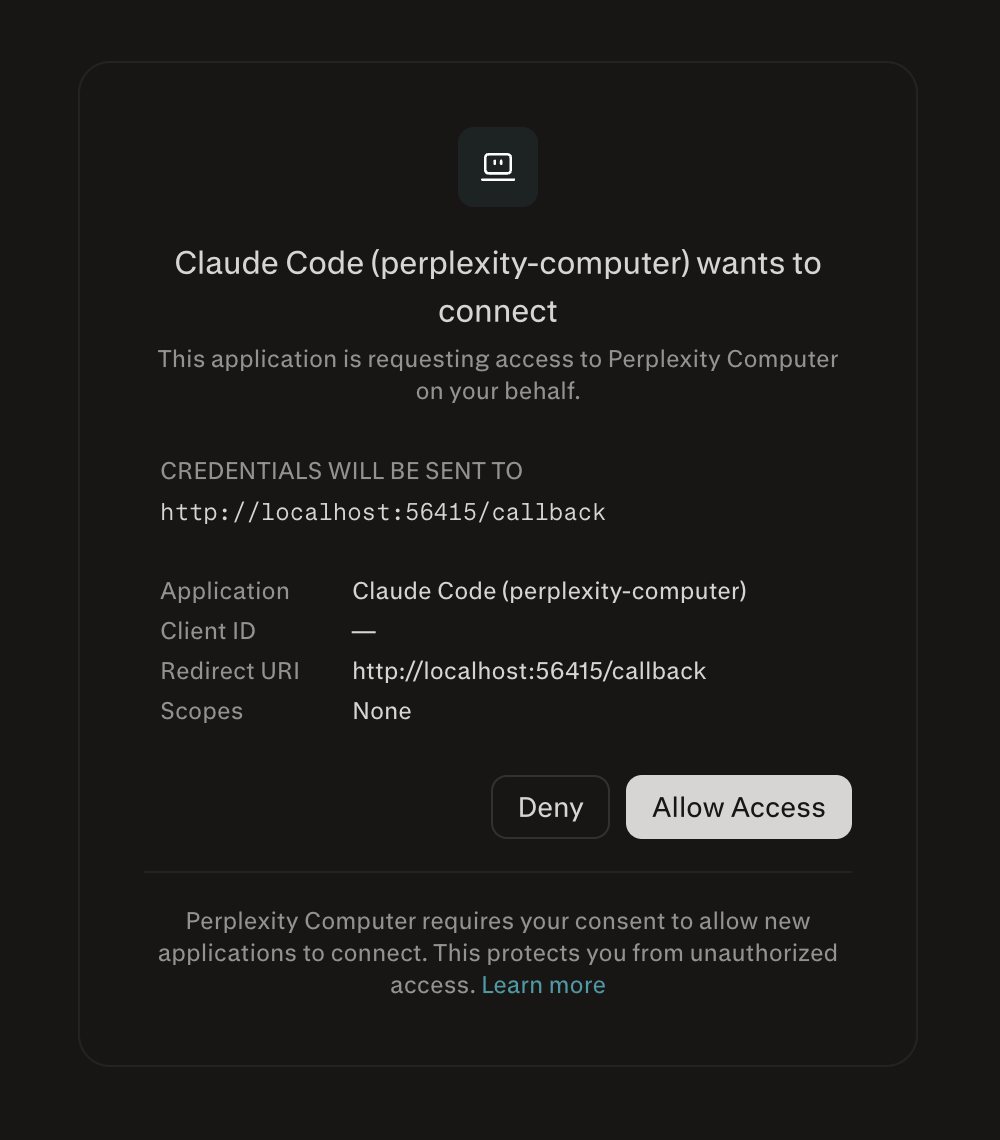
3
Step 3: Start using the Computer MCP
Once authenticated, you’re ready to start delegating tasks to Perplexity Computer through your MCP client.Run a short flow to test the connection and see Computer in action:Then follow up in the same conversation:
Conversation Threading
Computer remembers the context from the first message and builds on it. To keep follow-up prompts in the same workflow, your MCP client must pass thethread_id from the previous response.
The first call creates a new thread and returns a thread_id. Reuse that thread_id on later calls to continue the same session.
auth_required event, and after authentication the conversation resumes on the same thread:
Status and Progress Updates
Computer tasks can take several minutes when they involve browsing, connector authentication, code execution, or file generation. The MCP tool call stays open until Computer reaches a final state or an actionable checkpoint, for up to two minutes. If Computer is still working after that, the call returns atimeout event and the task keeps running.
Use the event field in each response as the current status for the task. The same response also includes the thread_id you need for follow-up calls:
interactive object:
thread_id:
The Computer MCP server sends status updates as MCP progress notifications while a task runs. Your client must include a progress token and support progress notifications to display them. These updates are task statuses rather than token-by-token response streaming.
timeout, Computer has not reached a checkpoint yet and is still working. Keep the thread_id and call read_thread with it to check the task’s status, read new messages, and find any questions or confirmations waiting for an answer. Don’t call call_perplexity_computer again just to check status: that sends a new message to the task.
Clients that run
call_perplexity_computer as an MCP task (task-augmented call) aren’t limited to two minutes. The server still stops waiting if Computer sends no checkpoint for 20 minutes, and returns timeout while the task continues.File Uploads
Computer can work on files you provide. To attach a file to a task, request a presigned S3 envelope withcreate_attachment_upload, upload the bytes directly to S3, and pass the returned URL in attachment_urls on your next tool call. The MCP server never sees the file contents, so uploads scale to large binaries without going through the worker.
Each attachment can be up to 200 MB on paid plans, or 25 MB on the Free plan. Plans also limit how many files you can attach per day or week. When a limit is reached, create_attachment_upload returns an error.
1
Step 1: Request an upload envelope
Call
create_attachment_upload with the file’s filename, mime_type, and size_bytes. The server returns a presigned S3 POST you can use for the next few minutes.2
Step 2: POST the bytes to S3
Send an unauthenticated S3 returns
multipart/form-data POST to upload_url. Include every key from upload_fields as a form field, then add the file under a file part.204 No Content on success. The file is now reachable at attachment_url.3
Step 3: Reference the file in a task
Pass the
attachment_url to any task tool via the attachment_urls array. You can attach files to a new task or to a follow-up on an existing thread.create_attachment_upload
Request a presigned S3 POST for a single file. Returns an envelope your client uses to upload bytes directly to S3.
Returns:
Choosing a Mode or Model
If you don’t choose, Computer uses its default settings for your account. You can instead pick a mode, or a specific model and effort, when you callcall_perplexity_computer.
Discover your options
Callmodels_list to see what you can choose. It takes no parameters and only returns options your account is allowed to use, based on your plan, region, and organization policy.
Pick a mode or a model
Pass eithermode, or model with an optional effort, to call_perplexity_computer:
modeandmodelcan’t be used together.effortrequiresmodel. If you passmodelwithouteffort, Computer uses that model’sdefault_effort.- Use values returned by
models_list. Values that aren’t available to your account are rejected.
fast field is true in models_list.
Follow-ups. On a follow-up with a thread_id, passing mode or model switches the thread to the new settings. If you leave them out, the thread keeps its current settings.
Capabilities
Browser Control
Computer includes a full cloud browser for tasks that go beyond search. When a task requires interacting with a website, filling forms, or accessing login-gated content, Computer launches a browser session automatically.Code Execution
Computer runs code in a sandboxed Linux VM with a persistent file workspace. Python, Node.js, ffmpeg, and standard Unix tools are pre-installed, and additional packages can be installed on the fly.Connected Services
Computer connects to 400+ external services through a managed connector framework. Users authenticate once via OAuth, and Computer uses tokens securely to read data, take actions, and search across services.
When a task requires a service that isn’t connected yet, Computer provides an OAuth link. Authenticate in your browser and the connector becomes available immediately.
Available Tools
call_perplexity_computer
Send a message to Perplexity Computer to start or continue any task. This is the primary tool you’ll use for all interactions.Best for: Starting new tasks, sending follow-up instructions, and resuming paused conversations.
answer_question
Relays answers when Computer asks for more information. Clients that support MCP elicitation can handle this within the active call.Triggered by:
ask_user_question events.confirm_action_approve / deny
Approves or denies a sensitive action like sending an email or deploying code. Clients that support MCP elicitation can handle this within the active call.Triggered by:
confirm_action events.notify_connected
Resumes a task after you complete an OAuth flow for a third-party service.Triggered by:
auth_required events.read_thread
Reads a thread’s status, transcript, and any questions or sign-ins it is waiting on, without sending a message.Best for: Checking on a task after a
timeout, a dropped connection, or a sleep.models_list
Lists the modes and models you can choose for a task.Best for: Choosing a mode, model, or effort before calling
call_perplexity_computer.list_thread_assets / create_asset_download
Lists the files a thread produced and creates fresh download URLs for them.Best for: Fetching generated files after a reconnect or once an earlier link has expired.
projects_list
Lists the Projects you can access, so a conversation can start inside one.Best for: Finding the
project_uuid to pass to call_perplexity_computer.create_attachment_upload
Creates a presigned S3 upload envelope for a file you want Computer to use.Best for: Attaching files without sending their bytes through the MCP server.
call_perplexity_computer
The primary tool. Send a message to start a new task or continue an existing conversation.
Clients that support MCP elicitation can handle
ask_user_question and confirm_action within the active tool call. Otherwise, use the following tools to resume the task after an interactive event.answer_question
Relays answers when Computer returns an ask_user_question event.
confirm_action_approve
Approves a pending action from a confirm_action event.
confirm_action_deny
Denies a pending action from a confirm_action event.
notify_connected
Resumes a task after you complete an OAuth flow triggered by an auth_required event.
read_thread
Reads an existing thread without sending a message or resuming the agent. Use it to check on a task after a timeout, a reconnect, or a sleep.
Returns:
idle or an empty interaction list doesn’t prove a task is finished. Steps marked WORKFLOW_COMPLETED, WORKFLOW_ERROR, or WORKFLOW_CANCELED are terminal; check for background or scheduled work before treating a thread as complete. Only threads you own can be read.list_thread_assets
Lists durable assets from a thread you own, including generated files.
Returns an
assets array and a next_cursor. Keep paging while next_cursor is not null, even when a filtered page is empty. Each asset has:
create_asset_download
Creates a fresh HTTPS download URL for an asset in a thread you own.
Returns
asset_id, url, and expires_in_seconds.
- File download URLs are valid for up to one hour.
expires_in_secondsis the time remaining on the URL you received, which can be less than an hour. - Hosted website preview URLs last 24 hours and return
expires_in_seconds: null. - Call
create_asset_downloadagain whenever you need a new URL.
projects_list
Lists Projects you can access, 50 at a time.
Returns a
projects array and a next_cursor. Keep paging while next_cursor is not null before concluding a Project doesn’t exist. Each Project has:
Response Format
Task tools return a JSON object with the following fields.create_attachment_upload returns the upload envelope described in File Uploads instead.
Interactive objects for account events
When Computer can’t run for the account,interactive explains why:
billing_url is present only when topping up or changing a limit would help; it’s left out for reasons like a temporary service outage.
When the reason is quota_exhausted, interactive also includes quota_reset_date, the UTC time when the quota comes back (for example 2026-11-01T00:00:00Z).
Where you run out of credits matters:
- Before a message is sent: the server checks credits before it sends any message, including follow-ups. If that check fails, nothing is sent and the result has no
thread_idortask_status. Send the message again after topping up, with the samethread_idfor a follow-up. - During a task: the thread keeps its state and
task_statusisinput_required. After topping up, continue with the samethread_id.
Events
Each response includes anevent field describing the outcome:
Events and MCP Tasks states
If your client tracks work with the standard MCP Tasks states, each result’stask_status field gives the state using this mapping:
timeout means the MCP call stopped waiting, not that the task stopped: treat it as still working and use read_thread to check on it.
A complete result whose answer is waiting on the user reports input_required.
If you run call_perplexity_computer as an MCP task, that MCP task’s own status follows the tool call, which ends when the call returns a result. Use task_status in the result to tell whether Computer itself is done.
Links & Resources
Perplexity Computer
Learn more about Perplexity Computer, the Digital Worker that can complete any task on your behalf.
Perplexity API MCP Server
Power your agents with Perplexity’s APIs for real-time information retrieval and generation.